
Family links
When an event asks families to take jobs, a nudge from All families emails each parent their family link. It opens a page just for their family, for this event. They say who’s going and pick their jobs without signing in, whether or not they have a Grouperly account.
Send a nudge
Section titled “Send a nudge”Who: whoever runs the event (see Event jobs). It needs an ask set under Settings, since only an ask makes anyone short.
Open the event’s Jobs tab, then All families. It lists each family asked, with:
- Family: each person, with what they have (“on Parking Lot, AM”) or “no job”, and whether they have an account;
- Still needed: what the family still owes, such as “Leo: 1 more job”;
- Reached by: how the nudge would get to them. Family link is any adult, with an account or not. Jobs page is a youth with their own login;
- Nudged: the day they were last nudged.
To send one:
-
Tick the families to nudge, or Select everyone short who can be reached. Not nudged yet shows only those you haven’t.
-
Send a nudge. The dialog lists who gets which email:
- Sign up your family, by link: parents, with an account or not.
- Their own sign-up, by link: adults on their own, with an account or not.
- A youth with their own login gets their own Jobs page, about only their jobs. Untick them to leave it to their parent.
Each link opens their family’s page whether they’re signed in or not.
-
Add a note if you like. It’s quoted in each email.
-
Preview the email to shows one email of each kind, named by someone who gets it (“and 3 others”). Then Send to the number of people shown.
What they get: one email each, never a text. It names the event, what’s still needed, and your note. A family link’s email also lists the shifts with places open, and asks them not to forward it. To someone on their own, it says “you”: “Sportsmart: your job”, “This link is for you only”.
A second nudge starts “Reminder:”, names only what’s still missing, and carries the same link.
A youth without a login is never sent anything; their parent signs them up. A family with no email on the roster shows No email on the roster, with a phone number to call if there is one.
A nudge is the event’s own message, so it goes even when the group’s automatic emails are off. Each person’s own email settings still apply.
The family’s page
Section titled “The family’s page”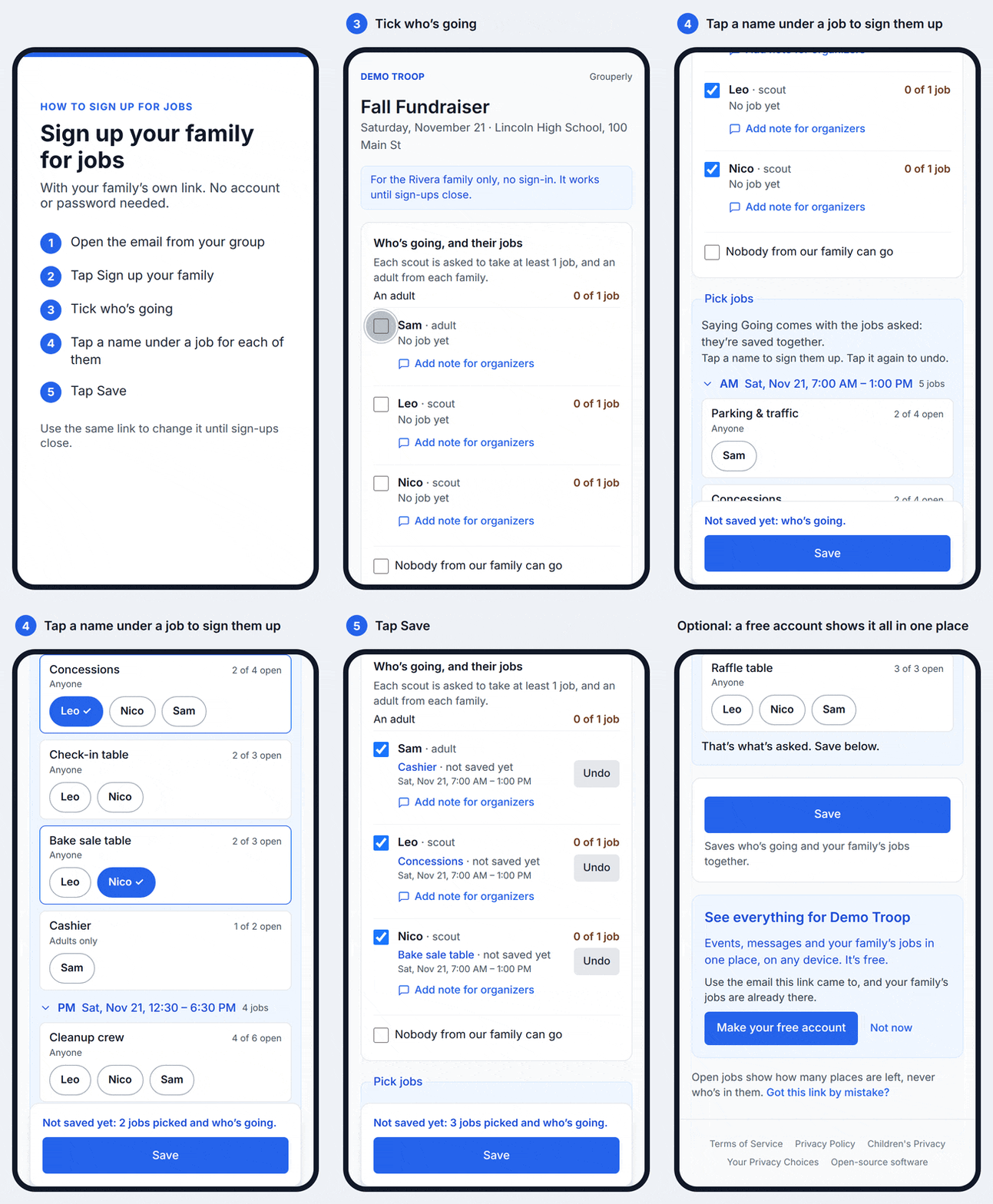
The link opens a page for that family only: “For the Rivera family only, no sign-in. It works until sign-ups close.”
-
Who’s going, and their jobs: one list of the family. Each person has:
- a tick for whether they’re going;
- where they stand on what’s asked;
- their jobs with Give it up, or “No job yet”. Give it up asks first, then gives the job up straight away: its place is open again in Pick jobs;
- Sam isn’t coming, for someone who won’t be there (an older child who’s aged out, the parent the link went to when the other one is coming, a clash). It unticks them as going, gives up their jobs on the event when saved, and a note can say why.
Nobody from our family can go is at the bottom. Someone already on another family member’s RSVP shows “Going with Jordan’s RSVP” and can’t be changed here. On an event that charges for tickets, or doesn’t take RSVPs, the page takes jobs only.
-
Pick jobs, by shift, with how many places are left, or how many are still needed on a job that counts items, and Already coming: what others said they’re bringing, without their names.
- When the family signs up together (the event’s default), each job has one Sign up for the family, and How many are you bringing? on one that counts items. The family’s jobs are listed once, under Your family’s sign-ups.
- When jobs are assigned to family members, each job says who it’s for (“Adults only”, “Anyone”). Tap a name to sign them up, and again to undo. Nobody is picked until they tap. Someone already on a job shows as signed up, and a clash is explained (“Maya is on Check-In then”).
-
Save saves who’s going, who isn’t coming and the jobs together. Fewer jobs than asked is fine: once each person is going, on a job or marked not coming, the family counts as fully signed up. While something isn’t saved yet, the Save box stays at the bottom of the screen and says what (“Not saved yet: 2 jobs picked”). “You’re all set” means those running the event see it now.
The page shows the family’s first names only: never who else is on a job, or anyone’s email, phone or birthday. What others are bringing shows without their names.
Someone on their own reads it as “you”: “For you only, Pat, no sign-in”, Are you going? with Yes, I’m going or I can’t go, and Pick your job.
Someone with an account sees the page as their account does, with You first, and what they save is their own RSVP. They don’t need to be signed in, or a member of the group, since they’re on its roster. Signed in, they can also open it from the Jobs tab: see Sign up your family.
Got this link by mistake? ends the link and emails those running the event, with the address it went to. All families then says so on the family.
Make your free account
Section titled “Make your free account”For someone without an account, once they’ve saved or when the family already has jobs, the page offers See everything for the group: “Use the email this link came to, and your family’s jobs are already there.”
- Make your free account opens the roster’s invitation for the adult the link went to. If one isn’t waiting already, it’s sent then, from whoever made the link, as a leader’s invitation would be. Pressing it again sends nothing more.
- Not now hides it.
Once they’ve joined, their roster entry is linked to the account, so their family’s jobs come with it. If they then answer the event’s RSVP themselves, it takes over the people their link put on the event’s list, so nobody is counted twice.
Who’s going, on the event
Section titled “Who’s going, on the event”For someone with an account, who’s going is their own RSVP, as if they’d answered signed in.
For someone without one, the family’s people go on the event’s own list on the Attendees tab: “people with no one in Grouperly to answer for them”. They count toward the event’s limit like anyone going.
When the link stops working
Section titled “When the link stops working”- When sign-ups close. With no close date, when the event starts.
- When you cancel it: Cancel family link on the family’s row in All families. A later nudge makes a new one.
- When the person leaves the roster.
- When the address it went to is no longer their email on the roster or their account’s.
Making an account doesn’t end it: from then on it saves as their account.
An ended link shows nothing about the family any more.
Emails they already get
Section titled “Emails they already get”When someone puts a family member on a job, moves them or takes them off, or when a shift’s time changes, the email to a parent without an account carries their family link while it works. So does the reminder the day before. Without a working link, those emails say to ask whoever runs the event, as before.