
An event's link
Want families who haven’t made an account yet at an event, or people from outside the group? Share the event’s link. Members who are signed in go straight to the event’s page. Anyone else sees the event, but never who’s coming, and can register without an account.
Make the link
Section titled “Make the link”Who: whoever can edit the group’s events, such as owners and admins.
- Open the event and choose Share, beside Edit event.
- Create a link.
- Copy it, and put it in your email, newsletter or flyer.
The event needs RSVPs turned on, since people register through them, and it can’t be only for a subgroup. If places are held only once they’re paid for, finish setting up online payments first.
Share then shows the link, with:
- New link: the old one stops working. People already registered keep their own links.
- Close link: nobody new can register through it, and guests can no longer open their registrations. Their registrations stay.
- For people thinking of joining, where your group uses Recruiting: its form asks We’re thinking about joining. See Recruiting.
Showing the event on your group’s public page is a separate choice, in Edit event: not shown, its name, date and time only, or its full details. The page shows the link only with full details, so a link on any other event reaches only the people you send it to. See Choose what a public event says. Your group’s alumni who sign in see an event open by link on their Home and calendar.
RSVP by the link
Section titled “RSVP by the link”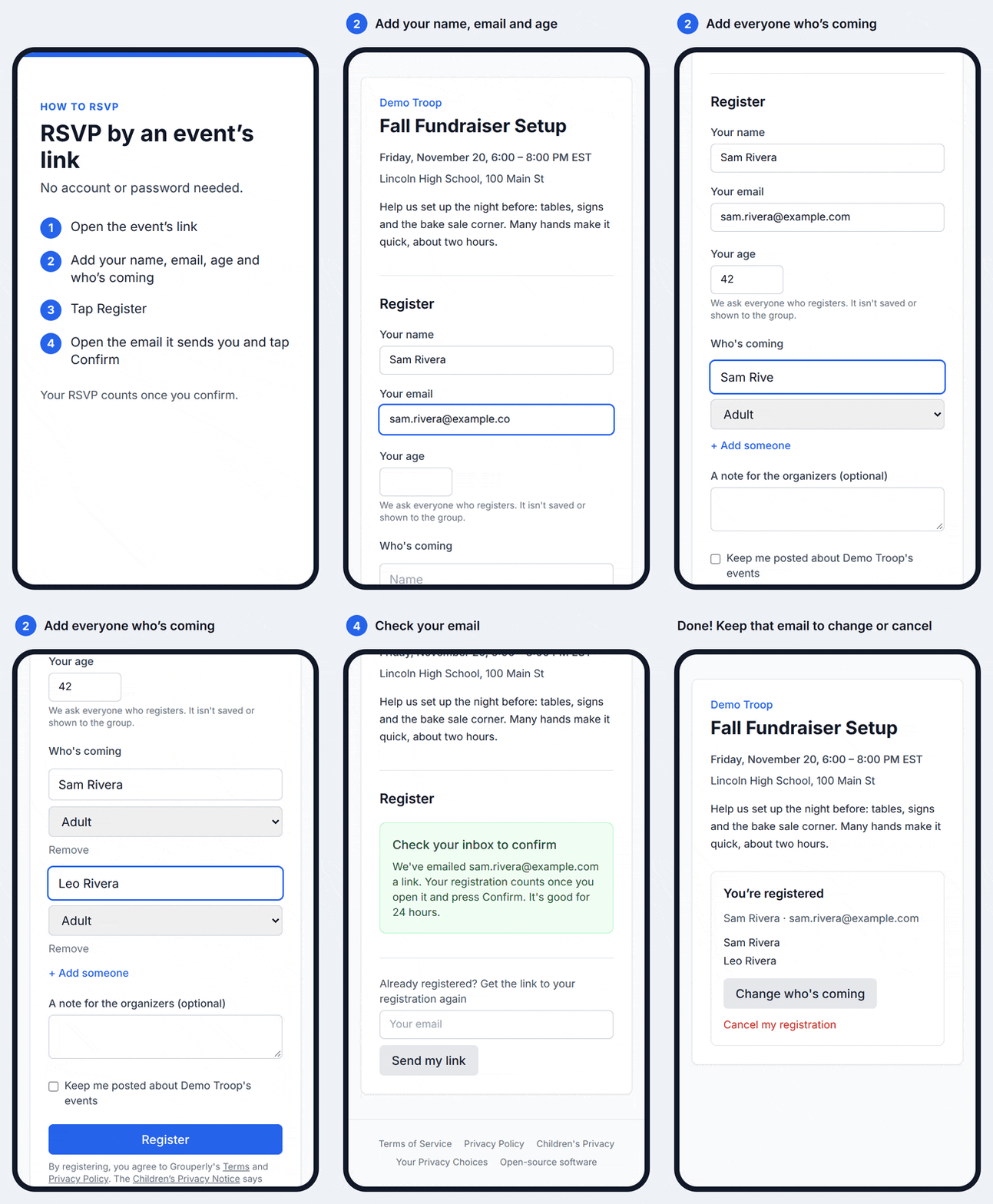
Someone without an account:
- Opens the link. The event’s name, when and where, and any cost come first, with Register below. The event’s description isn’t shown: it’s written for your members and can link to their pages.
- Adds their name, email and age. Someone under 18 is asked to have a parent or guardian register for them, and nothing is kept.
- Under Who’s coming, adds each person’s first and last name and whether they’re an Adult or a Child or teen, with + Add someone for more. When the event has tickets, each person chooses one.
- If anyone is a child or teen, ticks I’m the parent or guardian of the children I’m registering, or I have their parent’s permission.
- Adds a note for the organizers if they like, and taps Register.
- Opens the email it sends, “Confirm your registration for …”, and taps Confirm my registration, then the same button on the page it opens. The email’s link works for 24 hours.
Nothing counts until they confirm. Until then their place isn’t held.
Once they’ve confirmed, “You’re registered” lists who’s coming, with Change who’s coming and Cancel my registration. When the event’s jobs are open to anyone with the link, Want to help too? is there as well, and on the Check your inbox message they see after tapping Register.
- Helping, without typing it all again: What we need knows who they are. From their registration’s page it counts straight away; right after registering, it’s confirmed with the registration’s own email, which lists what they’re bringing. Their registration’s page then shows What you’re bringing. See Let anyone sign up.
- Coming back: a second email, “Your registration for …”, brings them back to it any time with See my registration.
- Paying: when the event costs money, they pay by card there too.
- Lost the email? Already registered? Change or cancel it, at the foot of the event’s link, opens to ask for their email, and Email me my link sends it again.
- Adding a child later: it asks for the parent-or-guardian box, if they didn’t tick it when they registered.
If they tick Keep me posted about your group’s events, their email is added to those who hear your group’s public news, once they’ve confirmed.
Once the event can’t be registered for (it’s full, registration has closed, or it’s over), a recurring event’s link offers Hear about the next … instead: one email when the next one is set.
Someone signed in who isn’t a member sees the same form, with their name and email filled in. If their account already shows they’re an adult, it doesn’t ask their age.
People on your roster
Section titled “People on your roster”A member who’s signed in never sees the form: the link takes them to the event’s own page, where they RSVP for their family. Someone who isn’t signed in sees On your group’s roster? Sign in to answer for your family above the form.
If someone on your roster registers by the form anyway, the registration is tied to your roster once they confirm their email. That needs the email to be one adult’s on your roster: the one on their roster entry or their account, or one of their other emails when nobody else lists it.
- Their people: each name they typed is looked for in their own family on the roster: themselves, their children, and the children’s other parents or guardians. A whole name, a first name, or a short form such as “Zach” for Zachary matches when only one person fits, and “Me” is whoever registered. Those people then show on your lists as the roster has them: in their family, as adults or youth, by their full names. Anyone else on the registration stays a guest by name.
- Still a registration by link: they change it, cancel it and pay for it from their own page, as before.
- Their sign-in: their page says You’re on your group’s roster, with Sign in if they have one, or Set up your sign-in if they don’t. Setting one up is your roster’s invitation, so joining links their account to their roster entry. With the same email they aren’t asked their age or the Terms again.
- Signed in later: the event’s page shows You registered through this event’s link, with Change or cancel it.
It doesn’t match an email two adults share, someone already coming on another RSVP, or names it can’t place for sure. An invitation isn’t offered to someone inactive, or someone who declined one.
Why the form asks their age, and about children
Section titled “Why the form asks their age, and about children”The form takes the names of the people coming, who are often children. US children’s privacy law (COPPA) means we check that whoever registers is an adult. That check can’t suggest the answer, so the form asks their age rather than offering an “I’m over 18” box.
- Their age: used once, when they tap Register. It’s never saved, and your group never sees it. An account they make later with the same email knows they registered, which only an adult can, so it doesn’t ask again.
- Adult or child: each person’s choice only decides whether the parent-or-guardian box shows. That isn’t saved either.
- The box: our Terms ask that whoever registers a child is their parent or guardian, or has the parent’s permission. A grandparent bringing the grandchildren is fine. Ticking the box is them confirming that.
- Who sees the names: only your group’s leaders and whoever leads the event. Two years after the event, the names are replaced with “Guest”.
If a family asks you why, this is the answer.
Who registered
Section titled “Who registered”On the event’s Attendees tab, each registration by link says “signed up by link”, with the email, and “email not confirmed” until they confirm. The group’s leaders see them, and so does whoever leads the event: its Organizers and Leads, and the leaders of the subgroups that run it. Other members see them only in the counts. Whoever can edit the group’s events has, on each one:
- Resend their link;
- New link: sends them a new one, and the links they have stop working;
- Cancel registration: a paid registration needs a refund first.
If you cancel the event, its page offers to tell the guests who registered through the link, with a note of your own: Send the notice.
Sign up to help by the link
Section titled “Sign up to help by the link”The link can also let anyone sign up for the event’s jobs, such as items for a donation drive, without registering for the event. Turn it on in Jobs › Settings › Anyone with the event’s link. The event’s link offers the jobs once someone has registered (Want to help too?), with a line at its foot for someone helping without coming, Helping without coming? See what’s needed. When it can’t be registered for, Want to help too? comes first. To ask only for help, share the jobs’ own link from Jobs › Settings. See Let anyone sign up.